Printing inspection results
A look at the options for printing out inspection results
Option 1: Direct print from the inspections card
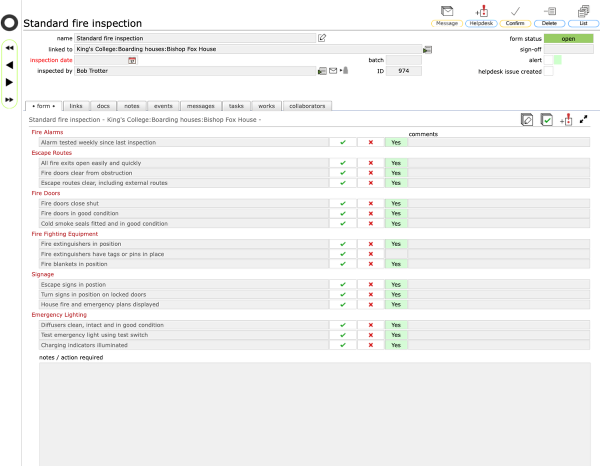
To print out the current inspection card, simply print the current screen from your browser.
Optionally, depending on the platform you are using, you can save to pdf.
Print dialog
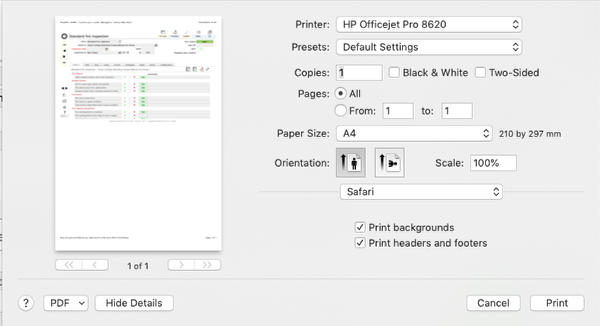
The caveat to this method is that if the inspection form has many checklist items they may not fit onto the printed page - in this case, look at the next option below...
Option 2: Print the expanded checklist results
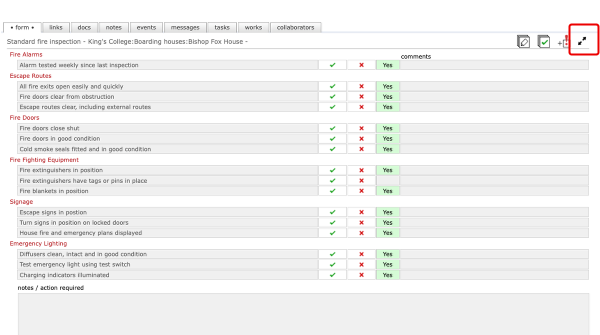
To print just the checklist results, first expand the inspection form itself to full screen using the zoom button on the form
Print the zoomed form
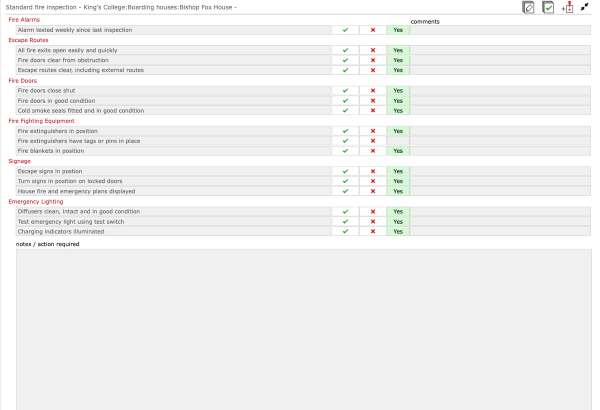
Now print the current screen direct from the browser as for Option 1 above
Option 3: Create a report with the inspection results listed in a matrix
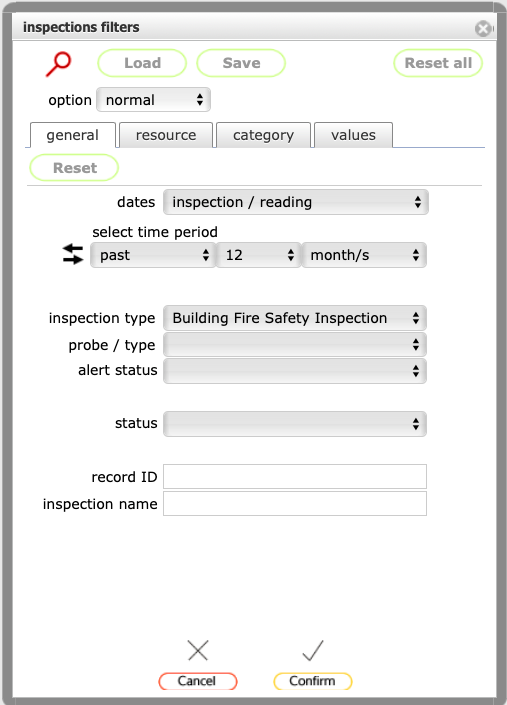
This is the best option if you are needing to print out a set of inspection results together in order to compare and collate the results.
Start from the inspection list and then use the filters (the Find button) to locate the set of records required.
As with all Find and filter operations you can combine complex criteria if necessary to fine tune the final list prior to producing the report matrix.
NOTE
You are advised to restrict the search to inspections of the same type, using the same or similar forms - otherwise you may end up with a very wide matrix of results!
The filtered list
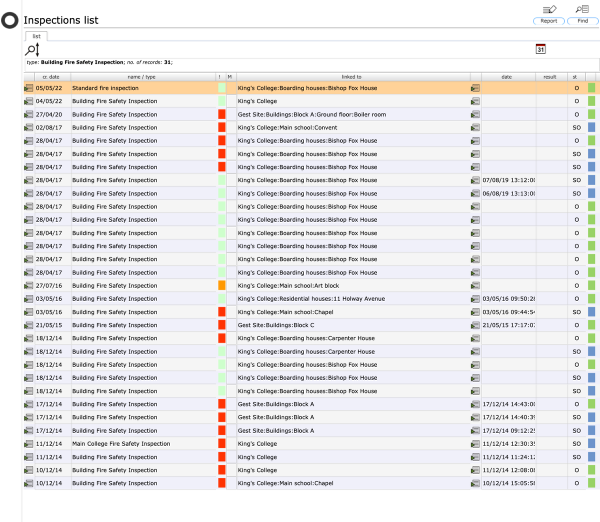
In this case we have filtered the set to all Building Fire Safety Inspection records
Select the report output required
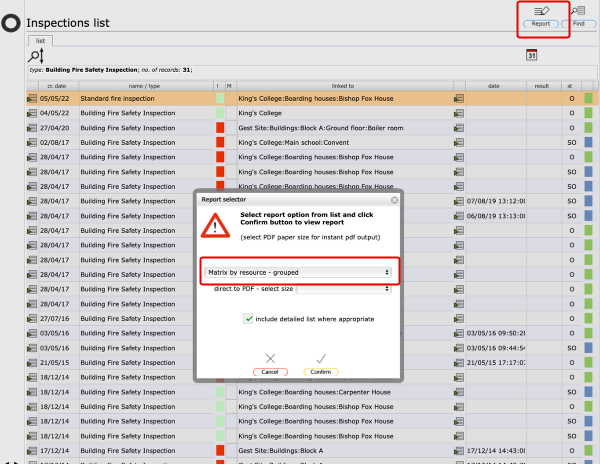
Click the Report button top right to show the list of report options.
There are a number of different report outputs available - feel free to try them out in order to determine which output best suits your requirements. Remember that report outputs are simply discarded unless you choose specifically to save them by renaming them.
In this example we are going to use the Matrix by resource - grouped report option.
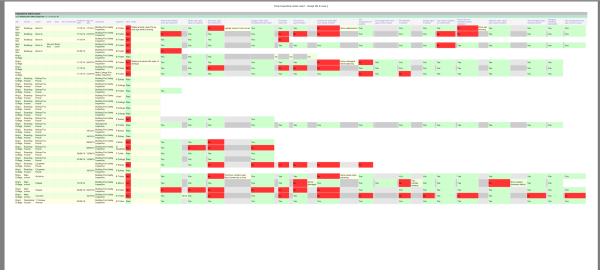
The matrix report output

The matrix contains a single row per inspection result, with the resource listed in the first columns and all the inspection results listed in the columns of the matrix, along with the Pass/Fail result and any comments.
Fails are colour coded red for easy identification.
NOTE
This output will not print well from the browser generally as it is too wide - the best option now for printed output of the matrix is to save out to pdf first. Start by selecting pdf as the export format and then click the Export button.
Output to pdf

Now select the nominal paper size required for the pdf - you will need to select a size that is large enough to accommodate all the columns in the matrix - so you may need to go to A1 landscape (or even A0!) for many columns.