Manually adding an employee qualification/achievement/certification
How to manually add a qualification or assign a course to an employee.
The employee record
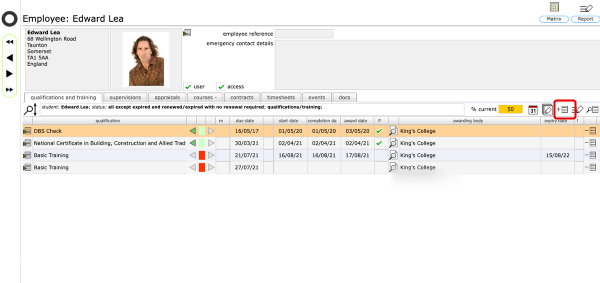
Start on the employee's record (Select the employees tab on either the Client or Provider home card, then click the Goto button for the relevant employee).
Click the New button on the qualifications and training tab to add a new qualification.
NOTE: If you do not see the employees tab or the option to add new qualifications, your privileges do not allow this action and may need to be changed in order to allow access.
Confirm the qualification details
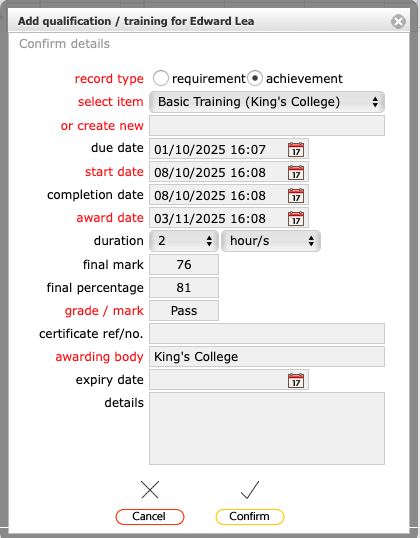
Confirm the relevant details for the qualification you are adding. You can select from the qualifications that you have access to (by choosing from the select item list) or you can add the name of a different qualification manually (by typing in the or create new field).
Only add an expiry date for those qualifications that require renewal or will otherwise expire.
Click Confirm to finish.
The qualification/achievement record
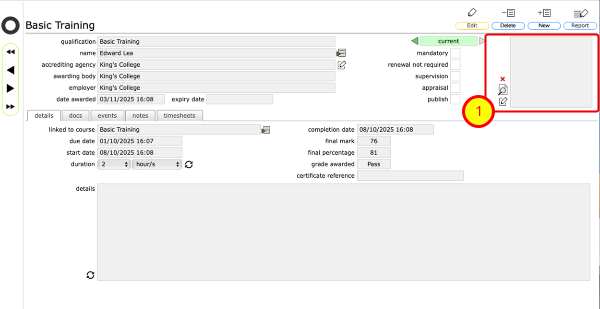
You can further edit the qualification record if necessary and update it when required (ie to set a completion date or update the expiry date for example).
Optionally set the tick boxes for:
- mandatory - to indicate that this qualification/course is a mandatory requirement for this employee;
- renewal not required - to indicate that even if this qualification expires, renewal is not necessary;
- supervision - to classify this qualification as a supervision record;
- appraisal - to classify this qualification as an appraisal record;
- publish - to confirm that this record is to be available publicly to those who can view the employee or contact record.
You can optionally add documents linked to this qualification on the docs tab, add notes about it on the notes tab, and link employee timesheets to completion of this qualification on the timesheets tab.
You can display an image of the qualification certificate by editing the thumbnail on the qualification record (1).
Qualification added to employee record
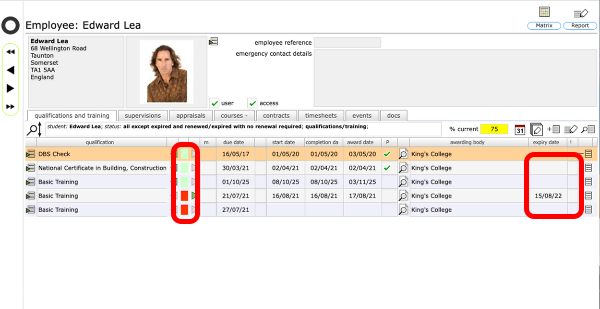
The confirmed qualification has been added to the employee record. The green colour flash in the third column confirms that the qualification is current. If the qualification has an expiry date this will show in the expiry date column and the colour flash will change from green to orange as the expiry date approaches and to red once the expiry date has been passed.
Published qualifications on the contact record
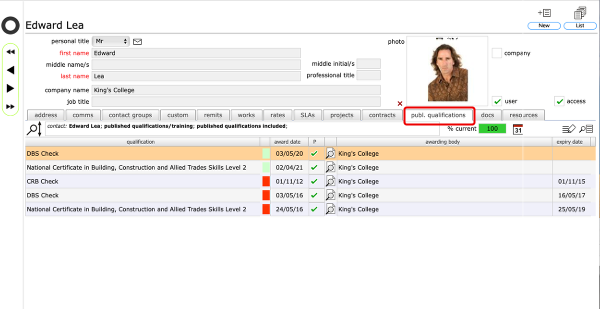
Any qualifications that have had the publish option ticked will be visible on the relevant contact record for the individual (on the publ. qualifications tab) and can therefore be checked for validity/currency when required.
Manually adding supervisions and appraisals
Supervisions and appraisals are aded in the same way but starting from the relevant tab on the employee record.