Setting up Managers and Surveyors
How to set up and manage managers and surveyors on sites
Introduction
Managers are key personnel in Flow360 and are the only user types that can action new works enquiries and orders. Therefore every site requires at least one Manager assigned to it for full functionality. Managers are assigned to sites by the Client admin users of those sites.
Surveyors can do many of things that Managers can, with the exception of actioning new enquiries and orders. In addition, Surveyors have special responsibilities for inspection and sign-off of works and the specification of new standard tasks.
Adding a manager to a site
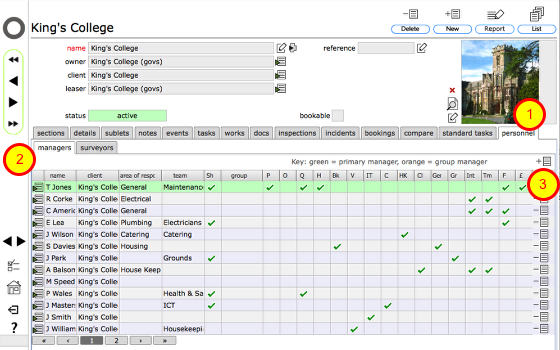
To assign a Manager to a site you must be logged in as a Client admin user. Start by navigating to the main site record.
To allocate a new manager, first click the personnel tab (1), then the managers tab (2). Click the New manager button at the top of the Managers list (3).
Confirm action
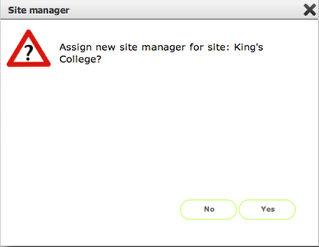
Click Yes to proceed!
Select Contact as new Manager
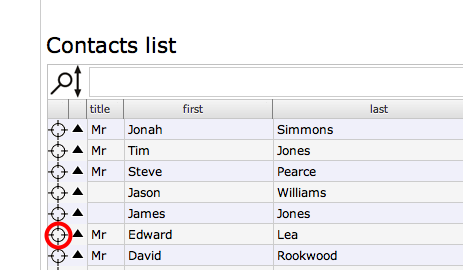
You will see the full list of contacts. Select the person that you are assigning as a new Manager by clicking the appropriate target button next to their name. The selected person will be listed in the Current selection list at the bottom of the screen.
Confirm choice of Manager
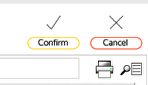
Click the Confirm button, top right, to add the selected person as a new Manager.
New manager added to managers list...

Adding a surveyor to a site
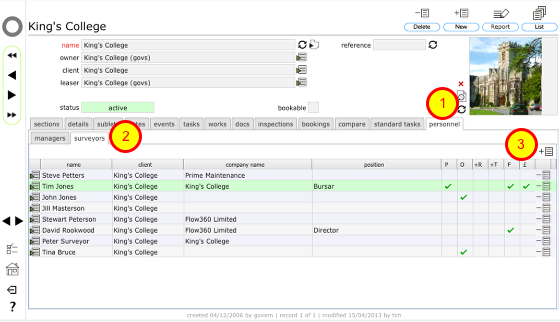
To assign a Surveyor to a site you must be logged in as a Manager or Client admin user. Start by navigating to the main site record.
To allocate a new surveyor, first click the personnel tab (1), then the surveyors tab (2). Click the New surveyor button at the top of the surveyors list (3). Select a contact in the same way as for assigning managers above.
Confirm action
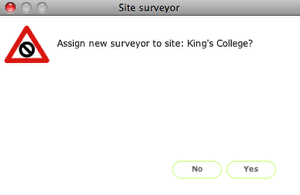
Confirm action by clicking Yes here, then select the relevant person as above and click Confirm to assign.
Removing a Manager or Surveyor, setting the Principal Manager and Surveyor

To remove a Manager or Surveyor form a site, click the remove button (1) next to their name. This simply removes their privileges in relation to this site and does not affect any other data relating to them in any other way. Full capability is restored to them simply be re-assigning them to the site by following the steps above.
Assigning manager privileges
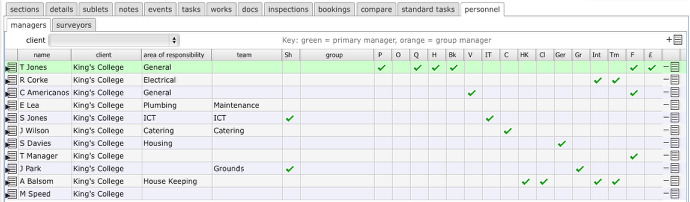
A number of checkboxes on this form assign additional responsibilities or privileges to managers. Only client and manager users see the full set of indicators here. Other users will only see those items that are appropriate for them to see. For example a General user can see who the primary manager or the helpdesk manager is but they will not see who has budget clearance, full access or restricted ordering settings.
- P - There can be a single Primary Manager assigned to each site. To set a Manager as the Primary Manager on that site, simply click the checkbox (1) in the P column for the appropriate person (only accessible to client admin users). The Primary Manager can assign some privileges to other managers and surveyors.
- O - Oversight only setting. This is a restriction and allows the manager view only access.
- Q - Qualifications, training and employee contracts access. Click this to allow the manager access to employee records, qualifications and training.
- H - The Helpdesk manager (again only 1 per site) - this person controls much of how the Helpdesk functions through their preferences and is the default manager for Helpdesk issues where another manager or team is not specified
- Bk - The Bookings manager (1 per site) - default manager for bookings services. Bookings services preferences are controlled by this manager.
- V - The Vehicle bookings manager (1 per site) - default manager for specific vehicle bookings. Vehicle bookings services preferences are controlled by this manager.
- IT - The ICT Helpdesk manager (1 per site) - the default manager for ICT services issues.
- C - The Catering manager (1 per site) - default manager for Catering services issues.
- HK - The Housekeeping manager (1 per site) - default manager for Housekeeping services issues.
- Cl - The Cleaning manager (1 per site) - default manager for Cleaning services issues.
- Gen - The General manager (1 per site) - default manager for General services issues, which includes portering, logistics and other general service issues.
- Gr - The Grounds manager (1 per site) - default manager for Grounds services issues.
- Int - Managers can be restricted to issuing internal works enquiries and orders only. This is indicated by a tick in column 5 - accessible to client admin users only.
- Tm - Managers can be restricted to issuing internal works enquiries and orders to members of their own team only. This is indicated by a tick in column 5 - accessible to client admin users only.
- F - Full access is indicated in column 6 - this allows managers to manage works enquiries and tasks throughout the sites they are assigned to - if full access is not set then the manager can only mange tasks and works related to assigned Helpdesk issues. This setting is accessible to client admin users only.
- £ - Full budget & costs (cost centre and accounts) clearance is granted in this column - again, only accessible to client admin users.
NOTES:
- Re. full access: It is appropriate for many maintenance of facilities managers to have full access. Limited access is normally assigned to other managers such as catering managers who do not require full access to all tasks and works for example. If you are unsure, set limited access only to start with and if there are actions that the manager needs to take and is prevented from doing so, then reset the access to full.
- Additional settings in the client preferences also affect how much managers can do on any one site - see section on setting client preferences for more information
Setting manager's principle area of responsibility

Each manager can be assigned a label which denotes their principal area of responsibility. This label is also shown on the manager's selection list when users log a new Helpdesk issue and helps unfamiliar users make a decision as to which manager they should direct their issue to. Client admin or primary manager users can simply edit this value by typing directly into the field on this form.
NOTE: the ability of other users to select the manager themselves is controlled by a primary manager preference setting. If this is set to Yes then users can select the manager when they log on issue. If set to No or left empty they cannot.
Assigning surveyor privileges

A number of checkboxes on this form assign additional responsibilities or privileges to surveyors. Only client and manager users see the full set of indicators here. Other users will only see those items that are appropriate for them to see. For example a General user can see who the primary surveyor is but they will not see who has budget clearance or full access .
- P - There can be a single Primary Surveyor assigned to each site. To set a Surveyor as the Primary Surveyor on that site, simply click the checkbox (1) in the P column for the appropriate person. (only accessible by client admin or primary manager users).
- O - Oversight only setting. This is a restriction and allows the surveyor view only access.
- +R - Add Resources. If this is set then the surveyor can add resources to sites, including buildings, rooms and objects. They can also modify and remove these resources but they cannot remove resources added by others as this is a limited access setting.
- +T - Add Tasks. If this is set then the surveyor can add scheduled tasks linked to resources they can access. They can also modify and remove these tasks but they cannot remove tasks added by others as this is a limited access setting.
- F - Full access is indicated in column 2 - this allows surveyors to manage works enquiries and tasks throughout the sites they are assigned to - if full access is not set then the surveyor can only mange tasks and works related to assigned Helpdesk issues. This setting is accessible to client admin users only.
- £ - Full budget (cost centre and accounts) clearance is granted in column 3 - again, only accessible to client admin users.
NOTES
- re. Full Access: Full access allows the surveyor to view all site resource data and add resources and act in a sign-off capacity for any assigned works orders. Surveyors without full access can only manage issues assigned to them directly. If you are unsure, set limited access only to start with and if there are actions that the surveyor needs to take and is prevented from doing so, then reset the access to full.
- Additional settings in the client preferences also affect how much surveyors can do on any one site - see section on setting client preferences for more information