Adding custom data for resources
Where to put all that extra information you want to maintain about your resources.
The custom data tab
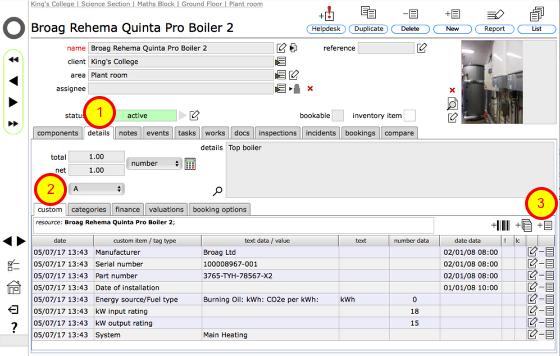
For every object you can store an unlimited number of custom data items. Access and add to this list by first clicking the details tab (1), then the custom tab (2).
Custom data items can range from manufacturer and serial number details to paint colours, warranty expiry dates and so on. Clients can set up standard sets of custom data items to attach to resources at each different level of the resource hierarchy to ensure that the right data is captured for their resources.
To add a new custom data item, start by clicking the Add button at the top of the list (3).
Enter a new custom data item for an object
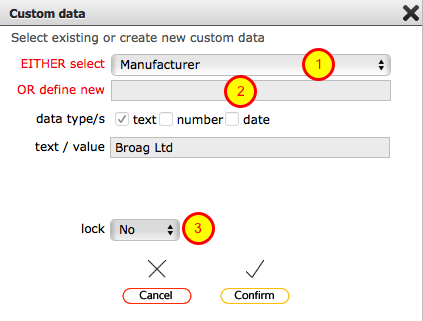
When adding a new custom data item you can either select from a list (1) that has already been set up in preferences, or you can add a new custom data type by entering a new label in the 'define new' field (2)
Each custom data row can have text, number and/or date information added. In addition the creation date is automatically logged and shown at the start of the row.
As the user adding the new custom data item you can also choose to have the row locked to prevent any other users from amending the row. To do this, set the locked? field (3) to 'Yes'.
Click Confirm to add the new custom data item.
New custom data added to list
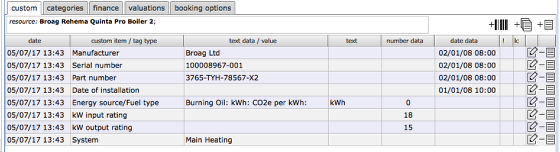
Each new item will be added to the custom data list.