
Setting up Standard User Preferences
Preference settings that apply to all users
Viewing and setting personal preferences

On your home card there is a Preferences button - click this to access your personal preference settings for Flow360
Accessing personal preferences using the mini preferences button

This button will take you directly to your preferences. It is found on most screens at the bottom left in the sidebar and also appears on the main start screen.
Personal Preferences card - basic preferences

The currently logged in user account and account type are shown for reference at the top of the main preferences panel.
(1) Allow multiple logins on this account - default is 'Yes'. Set to No to restrict access by yourself to only one computer at a time. Remember that access is secure and password protected so setting this to No is not recommended for most users.
(2) Show tooltips - generally this can be left on but if the tooltips annoy, set this to No!
(3) Access to view my comms details - this is either public or private. In this context, 'public' is still restricted to other users who can see your contact card, which is generally only those people that work with you or are involved on your site
(4) Default access setting for documents that you add to Flow360 - default is 'services group'. This means that anyone who can access an object (resource, works order, inspection record etc) that a document is linked to can access and share the document. You can change the setting retrospectively for any documents that you have added.
Document access setting options:
- private - only you can access the document, no matter what it is linked to
- client group - restricts access to those in the same client group as you. This means other client admin or client staff users.
- site group - restricts access to those who work on the same sites as you. This means client admin, client staff, managers and surveyors.
- services group - restricts access to those who work on and provide services on the same sites as you. This means client admin, client staff, managers, surveyors, general users, service providers
- list - restrict access to named individuals only
(5) Provide additional feedback - initial default is 'Yes'. Set this to No to have restrict dialogs show during operations to giving more feedback and confirmation of steps.
(6) Stored documents download option:
- download all - documents will be downloaded to your computer when you click the view button
- show all possible in browser - graphics file formats and pdfs will display in the browser, other file types will be downloaded
- show only images in browser - all other filetypes will be downloaded
(7) New resource names lists show (only applies to users who can add resources i.e. managers, surveyors etc)
(8) Standard hours in working day - used as the basis for calculating hours used for tasks etc
(9) Working day start and end times - used in setting dialogs etc and for calculating working hours for calendar displays
Messaging tab
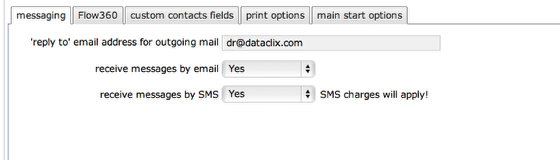
On this tab you can set up the defaults for messaging:
- The 'reply to' email address is the one that will be attached to emails that you send from within Flow360;
- Receive messages by email option - set to Yes if you want all messages to you also sent by email to primary email address (this is set up on your personal 'Home' contact card);
- Receive messages by SMS - set to Yes if you want to also receive all messages by SMS (text message) to your primary mobile phone number (this is set up on your personal 'Home' contact card);
NOTE: There will be a charge made for messages sent by SMS. Flow360 passes this charge on directly to the client of the relevant resources
Custom contacts fields tab
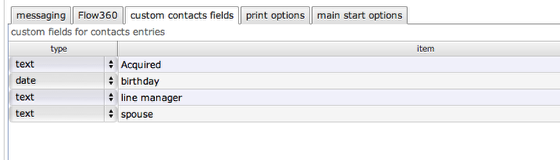
On this tab you can set up additional labels and data types that you would like to use on your own or others contacts cards. This information is only ever visible to you - each user of Flow360 can have their own independent (and completely private) sets of custom data that they can use on any contact cards that they have access to.
Flow360 tab
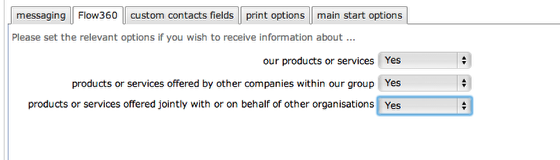
This tab allows you to specify if you want to receive occasional communication from Flow360 Limited about services.
Print options tab
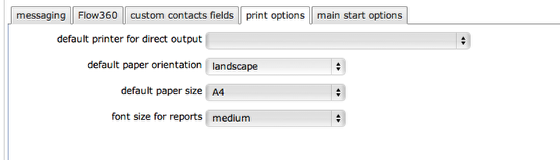
The print options tab allows to set up defaults for report outputs and to select a default printer if there is one available on your system.
Main start options
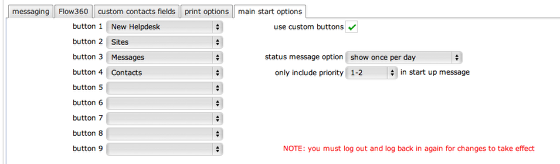
Start screen buttons
You can choose to set up the main start screen with you preferred set of buttons rather than the default ones. Use the selectors to choose which button you want in each of positions 1-9. You do not have to set any minimum number - if you only want 1 button that is fine!
IMPORTANT: to have the custom setup used, make sure you also check the 'use custom buttons' option! You must log out and log back in again to have these changes take effect.
Startup status message options
Choose if and when the status message shows - this gives notification of upcoming and overdue scheduled tasks, works items, helpdesk issues as well as qualification expiry and renewals. For tasks and works you can also choose the priority level/s to include in the message counts.
NOTE: It is also possible to trigger the status messages manually from the main start screen using the mini status gauge button.