Signing-off a works order
The works order
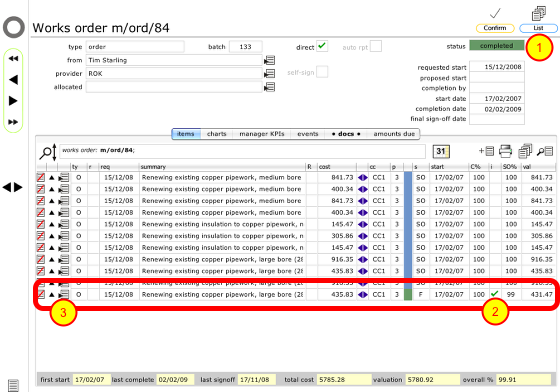
The status of the order is showing as 'completed' (1). In the list of items it is possible to see only one item where sign-off has been requested - indicated by a tick in the column after the completion percentage (2). All other items are showing as already signed-off. It is likely that there was a problem with this one item on the last sign-off which required remedial attention before final sign-off was possible!
Click the Goto button (3) on the relevant line to view the item details.
Update sign-off percentage
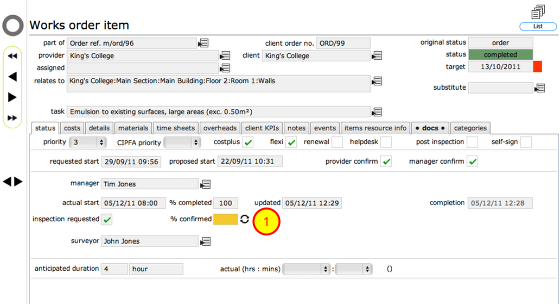
Click the change button next to the confirmed percent field (1) to update the percentage signed-off.
Enter sign-off percentage
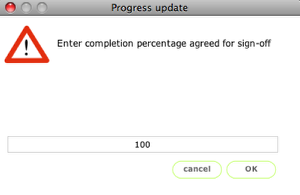
Enter the new sign-off percentage and click OK.
Item updated
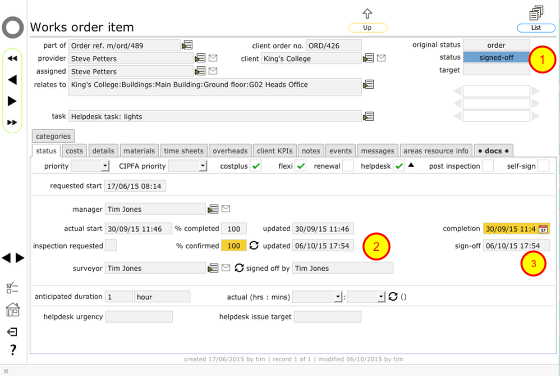
- The item's status is now showing as 'signed-off'.
- The confirmed percent field and the date of update have been entered.
- The sign-off date has been entered.
Amounts due updated
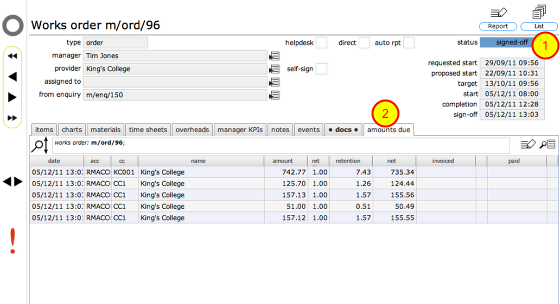
As all items are now signed-off, the parent works order status has now also been changed to signed-off (1).
Back on the parent works order record you will find a new entry on the 'amounts due' tab (2) showing the amount due for the latest sign-off.