Converting an enquiry into an order
Converting a returned enquiry into an order.
The issuing manager can confirm or cancel any returned enquiries. Confirmed enquiries are converted into new orders containing one or more of the items on the enquiry (the manager is able to cancel or confirm each item individually if necessary). If the manager cancels a returned enquiry then no new order is created and the enquiry status is clearly shown as cancelled.
Check messages
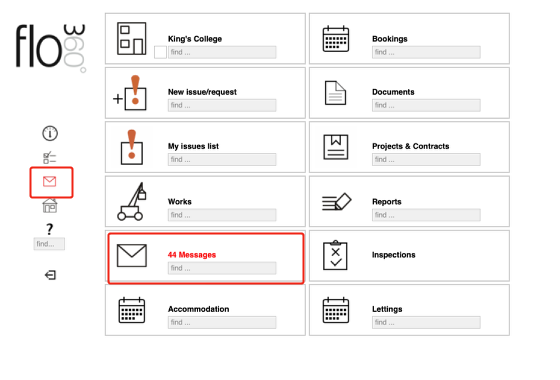
If you have any new messages the front screen will inform you. Click the messages button to view your received messages list.
The Received messages list

By default only unread messages are displayed in the list when you first view it. You can use the filters to change the criteria in order to view other messages. Click on the Goto button (1) to the left of the relevant row to view the message card.
The message card
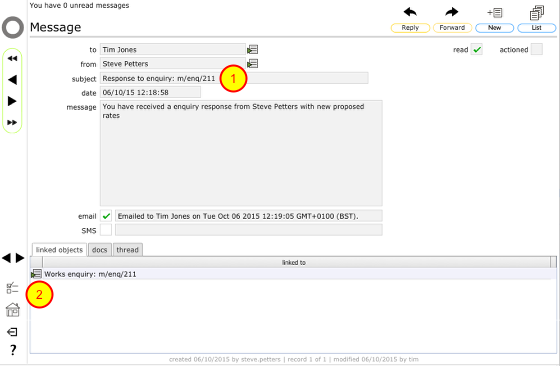
This message informs you that you have received a response to an enquiry (1). The link to the enquiry is at the bottom (2). Click the Goto button by the link to view the enquiry and the responses.
The works enquiry card
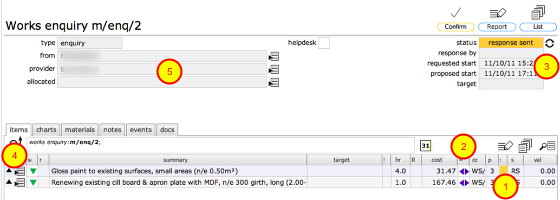
When you view the enquiry card as the issuing manager you can review the responses sent back by the service provider. In this example all items have been responded to positively - all have the response sent status set (1). You can also confirm that the enquiry rate was agreed by the service provider as all the items are showing double blue arrows in the cost comparison column (2). The proposed start date has also been completed (3).
Click the Goto button on the relevant line to view any works item record (4) in detail.
Review individual works items
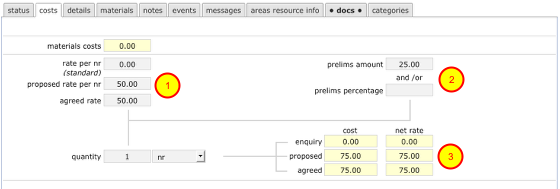
The costs tab allows you to check the price confirmations returned by the service provider. The proposed rate (1) has been added (in this example note that a zero rate was initially attached - if there are stored rates for the task, a standard stored rate may be added).
Where a provider has a cost-plus remit, prelims can be entered (2) and these will be reflected in the proposed cost and net rate (3).
Confirm agreed rate
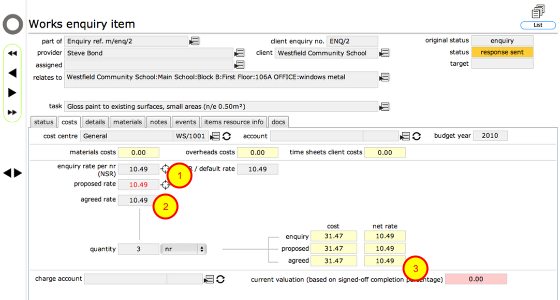
As the issuing manage you can confirm the final agreed rate for any works item by clicking the target button (1) next to the rate that is agreed. When you do this the agreed rate field is filled (2) and is reflected in the net agreed rate (3).
NOTE: It is NOT necessary to indicate the agreed rate for each works item in this way. You really only need to use the target button to indicate the agreed rate if the proposed rate is NOT the final agreed rate. Otherwise you can use the Confirm button on the main works enquiry record to simply confirm all proposed rates as agreed.
Confirm or cancel individual works items

On the works item status tab (1) the manager can confirm or cancel any individual works item by using the change button next to the manager confirm field. Click this button to confirm or cancel any item.
NOTE: It is NOT necessary to confirm or cancel each works item in this way. You really only need to use this button for an individual item if you need to cancel it (i.e. remove it from the final order). Otherwise you can use the Confirm button on the main works enquiry record to simply confirm all items.
Confirm final order
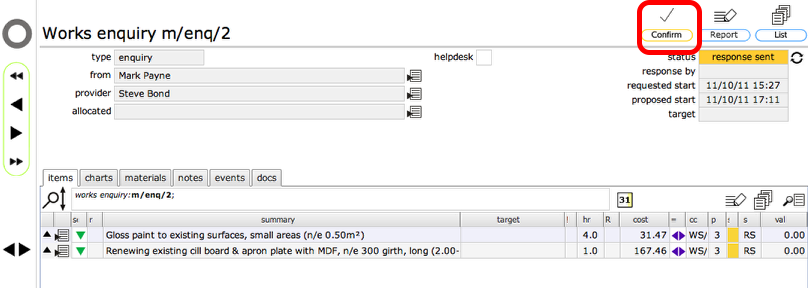
Once any works items that require individual responses have been completed return to the works enquiry by clicking the Goto button next to the enquiry reference on any works item card. Then click the Confirm button on the main works enquiry card to confirm all items that have not been cancelled as a new order.
Confirm action
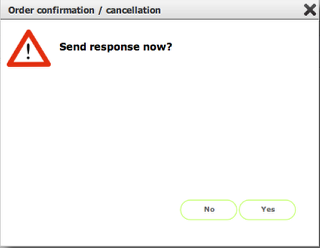
Click Yes to proceed
Confirm remaining items

If any individual works items were not confirmed or cancelled earlier then you will see this dialog.
Click Confirm All to confirm all remaining items as part of the order.
Click Cancel All to cancel any remaining items (if some items have already been confirmed individually they will still be included on a new order).
Click Abort to return to the enquiry without confirming the order.
Confirm rates agreement

If any individual works items rates were not confirmed you will see this dialog.
Click Yes to confirm the proposed rate as the agreed rate for all items where the agreed rate has not specifically been indicated already.
Click Cancel to return to the enquiry without confirming the order.
Purchase order required (option)
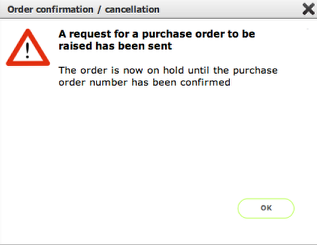
If the current preferences dictate that all orders issued through Flow360 require a client purchase order number before they can be released, you will see this dialogue informing you that a message has now been sent to the finance contact to request a PO number.
Confirmation! (no purchase order required)

If no purchase order request is required, then you will see this dialogue instead. The relevant service provider will already have received the new order information and the order will be listed as a new order in the works list.
NOTE: Flow360 retains all enquiries and orders as part of the permanent history of the objects they relate to. This allows all users to review the history at any time.
Confirmed enquiry
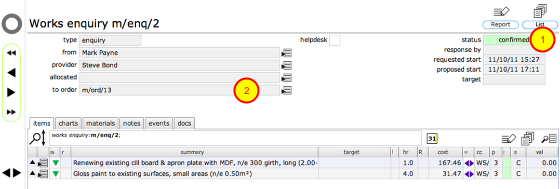
The enquiry record is retained in Flow360 along with its resulting order, if any ( cancelled enquiries do not of course generate an order) and is now indicated as Confirmed (1).
In this case, as the enquiry was confirmed, an order has been generated (and in this example is now on hold pending the allocation of a client purchase order number). The link to the resulting order is noted on the enquiry card so can always follow the links between any enquiry and it's related order. Click the goto button (2) to view the order.
NOTE: If no purchase order was required then by now you will be looking at the main start screen, with the order having already been sent!
Linked order record (with purchase order hold applied)

The new order has been created in Flow360 (and is visible in the works list) and in this case is now on hold pending the issuing of a client purchase order number. The 'status HOLD' text and the red colour flash (1) confirm this.
At this stage the service provider has not yet received notification of the new order. The notification will only be sent when the purchase order number has been supplied and the Flow360 order is released by the manager.
Viewing the HOLD event
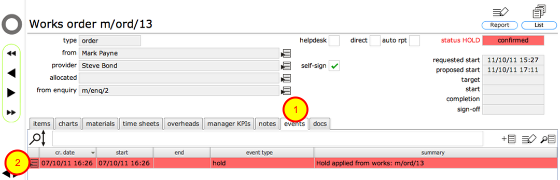
As this order has been placed on hold, a new event has been added to the events list - click the events tab (1) to view the events list. To view the full event card click the goto button (2) at the start of the HOLD event record.
The HOLD event card

The hold event record card show full details of the hold, when it was applied who applied it and what the reason for the hold is. The linked objects at the bottom lists all objects that are affected by the hold - in this case, 1 order, 2 order items and their 2 related tasks. Each of these objects will have a pink slash across the status colour indicating that a hold is currently in place.
When a purchase order number is supplied and the hold is released, all of these objects will revert to a status of 'confirmed'.